Introduction: Automate MIS Reports & Build Dynamic MIS Dashboards (No VBA Needed in 2026)
In 2026, MIS work is no longer about making the same Excel reports every day.
Now you can create MIS Reports in Excel Without VBA and automate your daily reporting work easily.
Many people still think Excel automation means learning VBA macros.
But in reality, VBA is not needed in 2026.
Excel now has modern tools that help you automate reports without coding. Using tools like Power Query, Dynamic formulas, Power Automate, and AI tools, you can:
Update reports automatically
Create dashboards that refresh on their own
Reduce manual work

Who Should Read This MIS Excel Automation Guide in 2026?
MIS Executives should read
Accounts and finance staff
It is important for Data analysts also
And Freshers who want to learn MIS Reports in Excel Without VBA
In This Guide, You Will Learn How to Create MIS Reports in Excel Without VBA (2026)
Automatically collect & clean raw data
No manual copy-paste. Learn how Excel can pull, clean, and structure data on its own.
Build fully dynamic MIS dashboards
Create dashboards that auto-update when new data is added — no redesign needed.
Save 70–90% of daily reporting time
Reduce hours of repetitive work using smart Excel automation techniques.
Use simple, no-VBA Excel methods (2026 standard)
Follow practical, company-used Excel methods — no coding, no macros.
No VBA.
No complex coding.
Only simple and practical Excel automation.
Why No VBA Automation in 2026 for MIS Reports in Excel?
1. VBA Is Slow to Learn and Hard to Maintain
Most people spend many months learning VBA just to automate simple MIS reports.
Even after that, a small change in data format can break the macro.
In 2026, companies want fast and easy systems, not VBA codes that only one person can fix.
That is why MIS Reports in Excel Without VBA are becoming the first choice.
2. Modern Excel Has Built-in Power Tools (No VBA Needed)
Excel now has strong built-in tools that work without VBA:
- Power Query cleans, transforms, and refreshes data automatically
- Dynamic Arrays like FILTER, SORT, and UNIQUE create live MIS dashboards
- LET and LAMBDA functions build advanced logic using simple formulas
These tools are already inside Excel.
No add-ins, no macros, and fewer errors.
This makes MIS Reports in Excel Without VBA easy and reliable.
3. Power Automate and AI Tools Are Replacing VBA
Microsoft Power Automate can refresh Excel files, send MIS reports by email, and connect cloud data — all without VBA.
AI tools like ChatGPT, Excel Copilot, and Formula helpers now suggest formulas and automation steps instantly.
When AI can do most of the work in seconds, learning VBA is no longer necessary in 2026.
4. VBA Has Security Risks and Company Restrictions
Many companies block VBA macros due to virus and security risks.
On the other hand, Power Query, Dynamic Arrays, and Power Automate are secure and office-friendly.
In 2026, businesses prefer safe and cloud-ready automation instead of old VBA codes.
5. No VBA Means Faster Learning and Better Team Work
VBA code is hard to understand and share with team members.
No-VBA tools are visual and simple to follow.
Anyone can open the file, check steps, and update the report.
This makes MIS Reports in Excel Without VBA better for team collaboration.
Bottom Line for 2026
If you want to automate MIS reports and build dynamic MIS dashboards without VBA, you are following the right and future-ready path.
Tools You Need to Automate MIS Reports & Build Dynamic Dashboards Without VBA in 2026
You do not need VBA macros anymore to automate MIS reports or build dynamic Excel dashboards.
In 2026, Excel and modern automation tools make reporting faster, safer, and much easier — no coding, no complex scripts.
With the right tools, you can easily create MIS Reports in Excel Without VBA and build dashboards that update automatically.
Below are the 5 most important tools you need right now.
1. Power Query – The #1 Tool for No-Code MIS Automation
Power Query is built inside Excel and is the most powerful tool for MIS automation without VBA in 2026.
What Power Query Does:
It Pulls data automatically from files, folders, databases, web, or SharePoint
Cleans messy data (remove blanks, fix formats, merge sheets)
Transforms data (split columns, combine tables, unpivot data)
Refreshes reports with one click or scheduled refresh
Why Power Query Is Perfect for MIS Reports:
Power Query is ideal for MIS reports because it helps you automate MIS reports in Excel without using any VBA or coding. It automates data cleaning and data preparation, which can save around 70–90% of daily MIS reporting time. Whether your MIS data comes from offline Excel files or cloud-based sources like OneDrive and SharePoint, Power Query handles both smoothly and keeps your automated MIS reports accurate, consistent, and up to date in 2026.
Best for: Sales MIS, stock reports, expense tracking, daily / monthly MIS
2. Power Automate – Auto Refresh, Save & Send MIS Reports
Power Automate connects Excel with email, Teams, SharePoint, and cloud folders.
A free desktop version is available.
What You Can Do Without VBA:
Auto-refresh Power Query data daily
Save updated MIS reports as PDF
Send reports automatically by email
Trigger actions when new data arrives
Why Power Automate Is Important in 2026:

No-code drag-and-drop automation
Works with Excel Online and Desktop
Free for basic automation needs
Best for: Automated MIS delivery, finance closing reports
3. Dynamic Arrays & New Excel Functions (FILTER, SORT, UNIQUE)
Dynamic Arrays are modern Excel formulas that make dashboards live and flexible — no VBA needed.
What These Functions Do:
- FILTER → Show only required data automatically
- SORT + UNIQUE → Create live lists of customers or products
- SEQUENCE → Auto-number rows or generate dates
- Can be combined with LET for cleaner formulas
Why They Are Important for Dashboards:
- Data changes → dashboard updates instantly
- No refresh button required
- Available in Excel 365 (used by most companies in 2026)
Best for: Live MIS dashboards, top-10 reports, summary tables
4. LET & LAMBDA – Clean and Powerful Excel Formulas
LET and LAMBDA help you write advanced formulas in a simple and readable way.
What They Do:
LET → Name parts of a formula for better clarity
LAMBDA → Create reusable custom Excel functions
Example MIS Uses:
Monthly growth percentage calculation
Reusable sales target or KPI formulas
Why Useful in 2026:
No VBA macros required
Faster and cleaner than nested IF formulas
Easy to share with team members
Best for: MIS KPIs, finance calculations, performance reports
5. AI Tools for Excel Automation (ChatGPT, Copilot, Formula Bots)
AI is changing how Excel works in 2026.
Popular AI Tools:
Microsoft Copilot → Creates formulas, charts, and insights
ChatGPT / Gemini → Suggest formulas and Power Query steps
Excel Formula Bot / SheetAI → Convert text into formulas
AI add-ins → Auto-create dashboards from raw data
Why AI Is a Game-Changer:
No need to remember Excel functions
Automation ideas in seconds
Very helpful for beginners
Best for: Fast formula creation, smart insights, dashboard ideas
Quick Summary: Best Tools to Create MIS Reports in Excel Without VBA (2026)
| Task | Best Tool | VBA Needed? | Learning Time |
| Auto import & clean data | Power Query | No | 1–2 weeks |
| Auto refresh & email reports | Power Automate | No | 1 week |
| Live dynamic tables | Dynamic Arrays | No | 3–5 days |
| Reusable calculations | LET + LAMBDA | No | 1 week |
| Fast automation ideas | AI Tools | No | 2–3 days |
Final Takeaway for 2026
These 5 tools are more than enough to automate MIS Reports in Excel Without VBA and build powerful, dynamic MIS dashboards.
No coding. No macros. Only smart, modern Excel automation.
Automate MIS Reports Step-by-Step (Using Power Query – No VBA Needed)
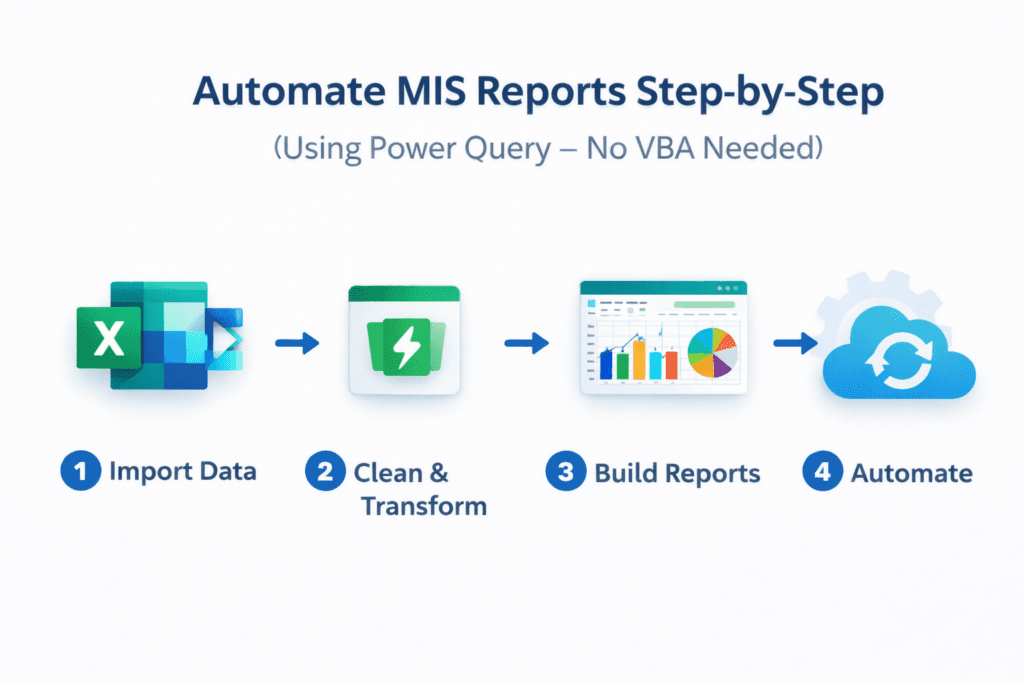
Power Query is the easiest way to automate MIS Reports in Excel Without VBA in 2026.
It automatically pulls data, cleans it, changes it into report format, and loads it into Excel.
You set it up once, and after that your MIS reports refresh with just one click.
No macros.
No coding.
Only simple steps that save 80–90% of reporting time.
Step 1: Import Data into Power Query
First, bring your data into Power Query.
Open Excel and go to the Data tab.
Click Get Data and select the source of your MIS data.
You can import data from:
You can import data from multiple sources while creating MIS Reports in Excel Without VBA, such as Excel files, CSV files, folders, databases, websites, and cloud platforms like OneDrive or SharePoint. This makes data collection faster, cleaner, and fully automated in 2026.
Excel or CSV files
A full folder (daily sales files)
Databases like SQL or Access
Web, SharePoint, or OneDrive
Select the file or folder and click Import.
Power Query Editor will open, and your raw data will appear there.
Tip:
If you receive new files daily, use From Folder. Power Query will automatically combine all future files.
Step 2: Clean the Data Automatically
Now clean the data once so you never do it again manually.
In Power Query, you can:
- Remove blank rows
- Fix date and number formats
- Remove extra spaces
- Replace errors like #N/A
- Remove duplicate entries
- Split one column into two (for example, full name)
Each action is saved as a step.
Next time, Power Query repeats everything automatically.
This is why MIS Reports in Excel Without VBA are faster and safer.
Step 3: Transform Data into MIS Format
Transformation means converting raw data into useful MIS information.
Common MIS transformations include:
- Grouping data (total sales by month, region, or product)
- Converting month columns into rows (unpivot)
- Joining two tables like sales and targets
- Adding simple calculated columns like growth or variance
All this is done using clicks, not formulas or VBA.
After this step, your data is fully ready for reports and dashboards.
Step 4: Load Data Back into Excel
Once your data looks correct, click Close & Load.
You can load the data as:
An Excel table
Or a connection for PivotTables
Your automated MIS data is now inside Excel.
Whenever new data arrives, just click Refresh.
Power Query will import, clean, transform, and load everything automatically.
Bonus: Make MIS Reports Fully Automatic
You can take automation one step further.
Using Power Automate, you can:
Refresh reports automatically every morning
Save refreshed MIS reports as PDF
Send reports by email without opening Excel
Connect this data to PivotTables and slicers, and your MIS dashboard becomes fully dynamic.
Final Note
Using Power Query, you can build MIS Reports in Excel Without VBA that are fast, reliable, and future-ready for 2026.
Build Dynamic MIS Dashboard (No VBA) – Pivot, Slicers & Smart Excel Tools (2026)
Now that your MIS data is clean and ready using Power Query, it’s time to convert it into a dynamic MIS dashboard in Excel without VBA.
This dashboard works like a live system.
When data changes, everything updates automatically.
Your dashboard will:
- Refresh automatically with new data
- Filter by date, region, product, or salesperson in one click
- Show live totals, charts, and highlights
- Look professional and easy to understand
No macros.
No coding.
Only built-in Excel tools used by companies in 2026.
Step 1: Prepare Your Data Table for MIS Reports in Excel Without VBA
After Power Query loads your data, make sure it is in Excel Table format.
Click anywhere in the data and press Ctrl + T.
If not, go to Insert → Table.
Now give the table a proper name like MIS_Data from the Table Design tab.
This step is important because:
New rows added by Power Query auto-expand
Dashboards stay dynamic
No manual range fixing needed
Your data is now dashboard-ready.
Step 2: Create Pivot Tables for Live Summaries
Pivot Tables are the backbone of any dynamic MIS dashboard without VBA.
Click anywhere inside the MIS_Data table.
Go to Insert → PivotTable and choose New Worksheet.
Now build simple summaries:
Region or Product in Rows
Sales or Revenue in Values
Date or Month in Columns (if needed)
Note : You instantly get a live summary that changes when data refreshes.
Create more PivotTables for:
Sales by salesperson
Top 10 products
Monthly or yearly trend
All these update automatically.
Step 3: Add Slicers (One-Click Filters)
Slicers make your dashboard interactive and user-friendly.
Click inside any PivotTable.
Go to PivotTable Analyze → Insert Slicer.
Choose fields like Region, Product, Salesperson, Month, or Year.
Place slicers neatly on the top or side of the dashboard.
Now connect one slicer to all PivotTables.
Right-click slicer → Report Connections → tick all PivotTables.
Result?
Click one slicer button and entire dashboard updates instantly.
Step 4: Use Dynamic Arrays for Live Sections (No Pivot Needed)
Dynamic Arrays help you show live lists without refresh buttons.
For example, to show high-value products:
=FILTER(MIS_Data[Product], MIS_Data[Sales]>50000)
Other useful ideas:
Live unique region list using UNIQUE
Auto-sorted top products using SORT
Smart counts using COUNTIFS
These formulas expand automatically and update when data changes.
Perfect for modern MIS dashboards in Excel without VBA.
Step 5: Add Charts & Highlights (Professional Look)
Now make it visual.
Select a PivotTable or dynamic range and insert:
Bar chart for comparison
Line chart for trends
Pie chart for contribution
Move charts into one dashboard area and align them neatly.
Add Conditional Formatting to highlight insights:
a. Color scales for high vs low values
b. Data bars for quick comparison
c. Red highlight for low sales or negative growth
Your dashboard now looks clean, modern, and management-ready.
Step 6: Make It Auto-Refresh (Final Touch)
Whenever new data arrives:
Right-click the table → Refresh.
For full automation in 2026, you can take these simple steps to keep your MIS reports updated automatically:
Use Power Automate to refresh file daily
Or store file on OneDrive / SharePoint for auto refresh
Once refreshed:
Data updates → PivotTables update → Slicers update → Charts update
Everything stays live.
Still no VBA used.
Pro Tips for a Killer MIS Dashboard
Use simple colors that match company branding.
Add a clear title like “MIS Dashboard 2026 – Live View”.
Freeze top row for better viewing.
Save the file as a template and reuse it every month.
Final Takeaway
Using Power Query, PivotTables, Slicers, Dynamic Arrays, and formatting, you can build a powerful dynamic MIS dashboard in Excel without VBA that is fast, clean, and future-ready for 2026.
Auto Refresh + Live Data Tricks (No VBA Needed in 2026)
Your MIS dashboard is ready.
Now imagine this: it updates itself automatically.
In 2026, Excel dashboards can refresh with live data without VBA and without daily manual work.
These smart tricks keep your MIS reports fresh every day — perfect for bosses, managers, and teams.
Below are the 3 easiest and most reliable ways to auto refresh Excel MIS dashboards in 2026.
1. Power Query Auto Refresh (Simple & Reliable)
Power Query already remembers every step of data cleaning and transformation used in MIS Reports in Excel Without VBA. Once everything is set, you only need to refresh the data, and the entire MIS report updates automatically without any manual effort in 2026.
After loading data using Power Query, right-click the output table and click Refresh.
Excel will re-import, clean, and update data automatically.
To make it even smarter, open the Queries & Connections panel from the Data tab.
Right-click your query, open Properties, and enable background refresh.
You can also set refresh timing like every 60 minutes.
Now save the file and reopen it.
Your MIS data refreshes automatically when the file opens.
This method is best for daily MIS reports, weekly sales summaries, and monthly finance MIS.
Pro tip:
Press Ctrl + Alt + F5 in the morning and all queries refresh together in seconds.
2. OneDrive / SharePoint Link (Live Cloud Data)
When your Excel file is stored on OneDrive or SharePoint, it becomes a live MIS system.
Upload your Excel file to OneDrive or your company SharePoint folder.
Open it from Excel Desktop or Excel Online.
If Power Query is connected to a shared folder or cloud file, data updates whenever the source changes.
Just enable Refresh when opening the file from query properties.
Now when someone updates a sales file or uploads new data, your MIS dashboard refreshes automatically the next time it opens.
This is perfect for team dashboards, shared sales data, and cloud-based MIS reporting.
Bonus advantage:
Share the dashboard link with your boss.
They open it and see the latest data — no emails, no attachments.
3. Power Automate Flow (Fully Automatic System)
Power Automate takes automation to the next level.
Your MIS report refreshes even when you don’t open Excel.
Create a simple flow using Microsoft Power Automate.
Set it to run every day at a fixed time, like 8 AM.
The flow can:
Open the Excel file
Refresh data
Save the updated report as PDF
Email it automatically to your manager or team
Once the flow is active, your MIS reporting becomes 100% automatic.
Basic flows are free.
Advanced Excel refresh options may need Microsoft 365 — which most companies already use in 2026.
This method is best for senior management MIS, daily sales emails, and zero-manual-work reporting.
Final Result: A Truly Live MIS Dashboard
Once auto refresh is enabled:
Data updates → tables update → pivots update → slicers update → charts update
Everything stays live.
Still no VBA.
Still no coding.
Final Takeaway for 2026
Using Power Query refresh, cloud links, and Power Automate, you can run MIS Reports in Excel Without VBA like a real system — fast, live, and stress-free.
Advanced Excel Tips 2026: AI Integration, LAMBDA Functions & New Features
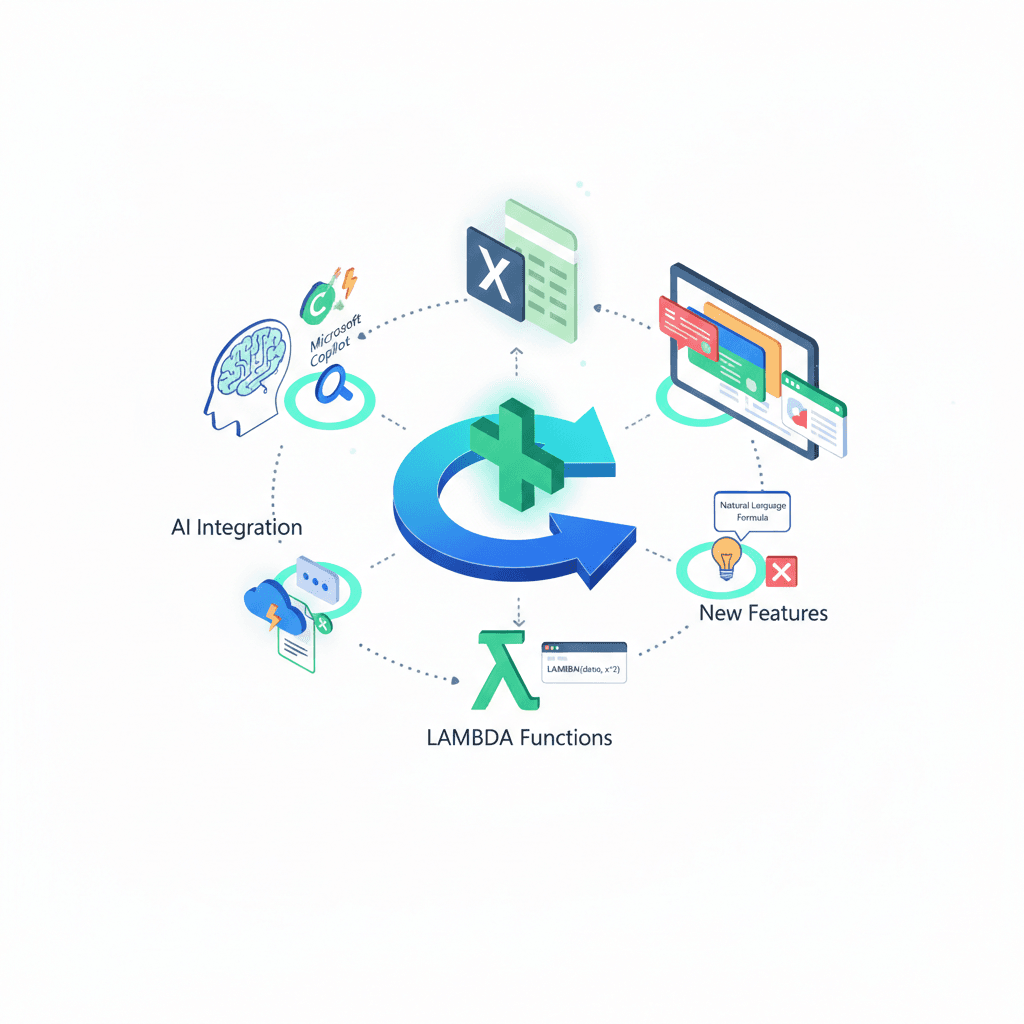
Excel is much smarter in 2026.
With AI tools, Copilot Agent Mode, and LAMBDA functions, you can work faster without VBA or complex coding.
These advanced tips will help you:
- Work like a pro MIS analyst
- Reduce manual formula writing
- Fix errors faster
- Build smarter reports and dashboards
2026 Updates: AI Integration in Excel
Microsoft has added strong AI features in Excel this year.
Copilot + Agent Mode (Big Upgrade)
Agent Mode in Excel now works like a smart assistant.
It can edit files, clean data, fix formulas, and even build reports for you.
You can simply type commands like:
- “Clean this sales data”
- “Create a pivot table by region”
- “Add charts and remove duplicates”
Copilot now also works with local Excel files, not only cloud files.
New AI-Friendly Features in 2026
Excel now supports:
- Natural language formulas (plain English to formula)
- New import functions like IMPORTTEXT and IMPORTCSV
- Clear error cards that explain mistakes and suggest fixes
These features make MIS Reports in Excel Without VBA easier than ever.
Tip:
Open Copilot pane and start with simple commands.
Once comfortable, try multi-step tasks.
Advanced LAMBDA Function Tips (No VBA)
LAMBDA lets you create your own Excel functions without macros.
Create Your Own Function (Simple Example)
Go to Formulas → Name Manager → New
Use this formula to calculate average ignoring zero values:
=LAMBDA(data, AVERAGEIF(data,”<>0″))
Name it: AvgNoZero
Now use it like a normal function:
=AvgNoZero(A1:A100)
No VBA.
Reusable everywhere.
Pro-Level LAMBDA Tips (Still Simple)
You can combine LAMBDA + LET to keep formulas clean and readable.
This helps when formulas become long.
Test your LAMBDA before saving:
=LAMBDA(x, x*2)(5)
Result will be 10.
You can also add notes in Name Manager so team members understand the logic.
Excel MIS Reports Automation Without VBA – Click Here
Best use cases:
Custom MIS KPIs
Sales targets calculation
Reusable finance logic
Using LAMBDA with AI (2026 Trick)
Copilot can help generate formulas.
You can then wrap that logic inside LAMBDA to reuse it again and again.
This combination is powerful for:
Complex MIS calculations
Standardizing reports across teams
Reducing formula errors
Common Excel Errors in 2026 (And Easy Fixes)
#CALC! Error in LAMBDA
Usually happens due to wrong input order or missing argument.
Always test your LAMBDA with sample values first.
#SPILL! Error
This happens when cells below are blocked.
Clear space below the formula or limit output if needed.
Copilot or Agent Mode Not Showing
Check if:
- Excel is updated
- Microsoft 365 subscription includes Copilot
- You are signed in with the correct account
Formula Looks Too Long
Break it into parts using LET.
This improves readability and reduces mistakes.
Final Tip for 2026 Excel Users
Use AI for speed,
Use LAMBDA for logic,
Use Power Query for automation.
This combination makes you future-proof in Excel — without VBA.
FAQs on Automating MIS Reports & Dynamic Excel Dashboards (No VBA, 2026)
Do I need a paid plan for Agent Mode?
Yes, a Microsoft 365 Copilot license is required to access full AI features while working on MIS Reports in Excel Without VBA, especially for advanced automation, data analysis, and dashboard assistance in 2026.
Is LAMBDA available on all Excel versions?
Excel 365 and Excel 2021 or newer versions are required to build MIS Reports in Excel Without VBA, as older perpetual Excel versions do not support modern features like Power Query, Dynamic Arrays, and AI tools.
How to Get New Import Functions for MIS Reports in Excel Without VBA?
You can join the Microsoft 365 Insider Beta to get early access to new features that improve MIS Reports in Excel Without VBA, including AI tools, advanced functions, and automation updates in 2026.
Can beginners automate MIS reports and build dynamic MIS dashboards without VBA in 2026?
Yes. In 2026, beginners can easily automate MIS reports & build dynamic MIS dashboards without VBA by using Power Query, PivotTables, slicers, and Dynamic Array formulas. These tools work with clicks and simple formulas, so no coding or macro knowledge is required.
Is it safe and company-approved to automate MIS reports without VBA in 2026?
Absolutely. Most companies prefer no-VBA solutions today. When you automate MIS reports & build dynamic MIS dashboards without VBA in 2026, you use secure, built-in Excel features and cloud tools that are widely allowed in offices and safer than macros.
Conclusion
In 2026, it is completely possible to automate MIS reports & build dynamic MIS dashboards without VBA in 2026 using modern Excel tools like Power Query, PivotTables, Dynamic Arrays, and AI features. This approach reduces manual effort, improves accuracy, and saves a huge amount of reporting time.
By following the steps in this guide, even non-technical users can automate MIS reports & build dynamic MIS dashboards without VBA in 2026 for daily, weekly, or monthly reporting. With auto-refresh and live data options, your dashboards stay updated without repeated work.
If your goal is faster reporting, cleaner data, and professional dashboards, learning how to automate MIS reports & build dynamic MIS dashboards without VBA in 2026 is one of the most valuable Excel skills you can have today.
Disclaimer
This article is for general information and educational purposes only. Features used for MIS Reports in Excel Without VBA, such as Copilot, Agent Mode, and LAMBDA functions, may vary based on your Microsoft 365 subscription, region, device, or update version. Results can differ, so always test these methods on your own data before using them in real-world reports.
The free template is provided “as-is” with no warranties. Use at your own risk.
This site may display Google AdSense ads using third-party cookies. For details, see our Privacy Policy.
This is not professional advice. For official information, check Microsoft’s website.
Last updated: February 2026